
Qwen Image Edit
Qwen Image Edit changes your photos from a written instruction: upload up to three, pick an edit type and describe the change. Try three free images, no sign-up.
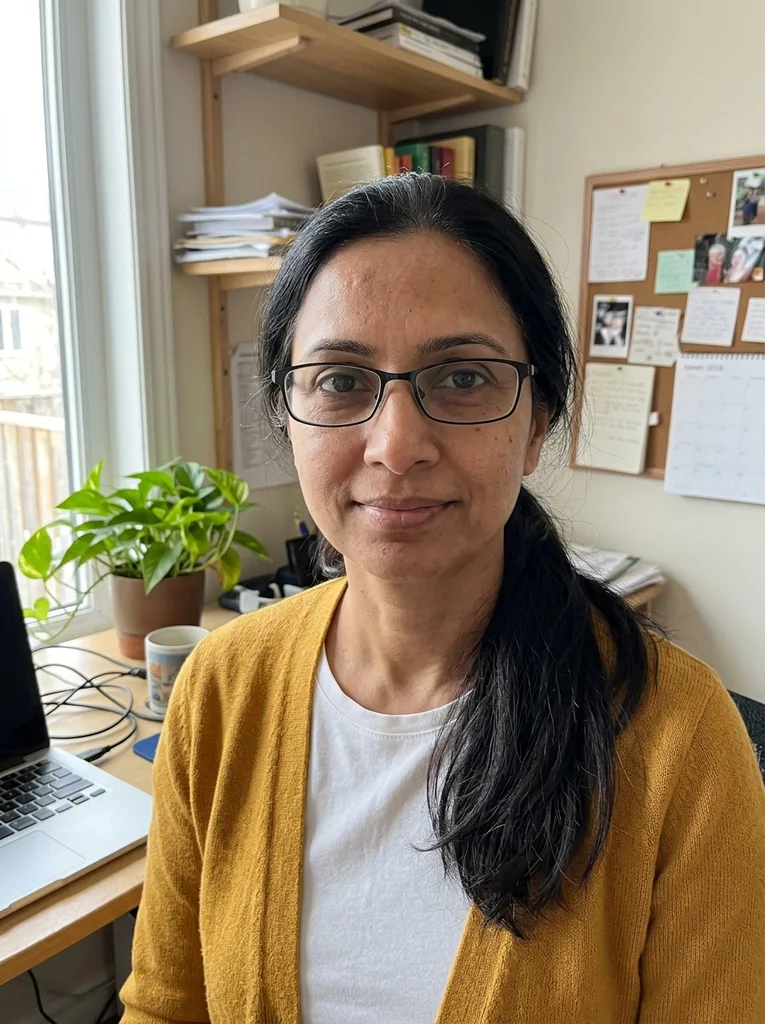 Before
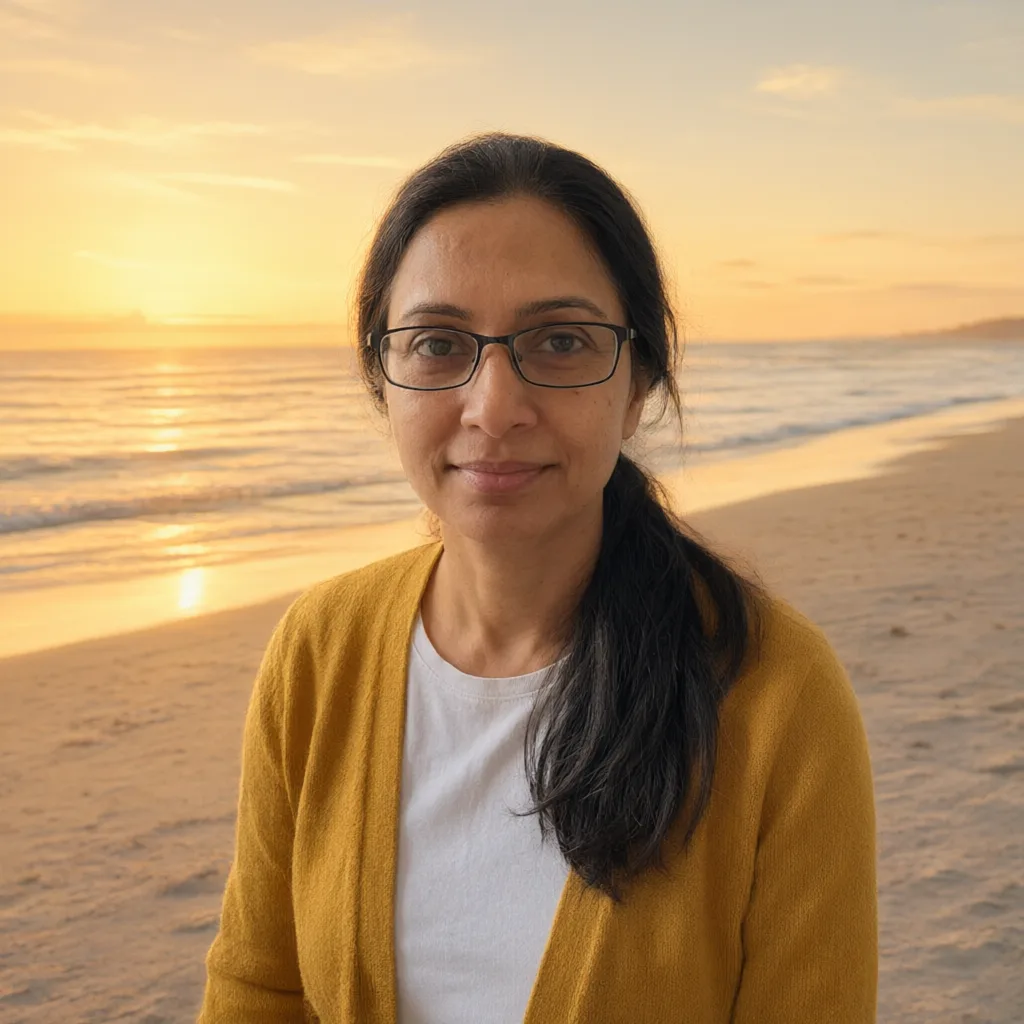 After
Example result. Upload your photo to make yours.
Examples
BeforeAfterHow to edit a photo with Qwen Image Edit
Three steps, one picture back per run.
- 1
Add one to three images
Click the upload tile or drag files onto it. JPG, PNG, WebP and HEIC work, up to 10 MB each. For a group photo or a product shot, add one image per person or item.
- 2
Pick an edit type
Choose General Edit, Add Background, Remove Element, Integrate Product, Face to Full Portrait, Group Photo, Next Scene or Remove Lighting. Then pick an aspect ratio from 1:1 to 21:9.
- 3
Describe the change and run it
Write what to change and what to keep, for example "replace the sky with a sunset, keep everything else". The result appears next to your original, and you can download it.
What you can do with Qwen Image Edit online
Each edit type is built for one kind of job.
Swap or add a background
Move a portrait or a product shot into a beach, an office or a plain studio backdrop. The light and shadows are matched to the new scene.
Remove a person or object
Name the stranger, the sign or the cable and Qwen Image Edit fills the gap with the surrounding background. Useful for travel shots and listing photos.
Place a product in a scene
Upload the product and a scene photo. The model is told to keep the product's shape, label and logo, and to match scale and shadows.
Turn a face into a full portrait
Start from a cropped face or an avatar and get head and upper body in a fitting setting. Check the likeness against your original.
Combine people in one group photo
Add a photo of each person and get one shared scene. Good for friends or family who were never in the same place.
Make the next shot of a scene
Continue a picture like the next frame of a film, with the same characters and setting. Say how the camera or the action should move.
Calm harsh or colored lighting
Remove strong color casts, hard shadows and blown highlights and relight the picture with soft, even light.
Fix or add text in a picture
Put the exact words in quotes and say where they go. Check the spelling in the result before you use it.
Tips for better Qwen Image Edit results
What to prepare before you press the button.
- Say what to change and what to keep when you use Qwen Image Edit, for example "remove the car on the left, keep everything else".
- Say exactly what to change and what to keep.
- Put any words the image should show in quotes and name the spot, such as "the sign above the door".
- For Group Photo or Integrate Product, add one clear image per person or item, in the order you mention them.
- Choose the aspect ratio before you run it; a new ratio needs a new run.
- Start from a sharp original, JPG, PNG, WebP or HEIC under 10 MB, with the subject fully visible.
- If the result drifts, run again with a shorter prompt that names only the change.